iPhone Display Dimming: Understanding Automatic Brightness and User Control
Understanding iPhone Display Dimming
The iPhone's display is a critical component, consuming a significant portion of the device's battery life. To balance visual clarity with power efficiency, Apple employs various dimming techniques, both automatic and user-controlled. Understanding these mechanisms allows users to optimize their viewing experience and extend battery performance.
Editor's pick: iPhone screen protectors on Amazon → As an Amazon Associate, this site earns from qualifying purchases.
Automatic Brightness: A Double-Edged Sword
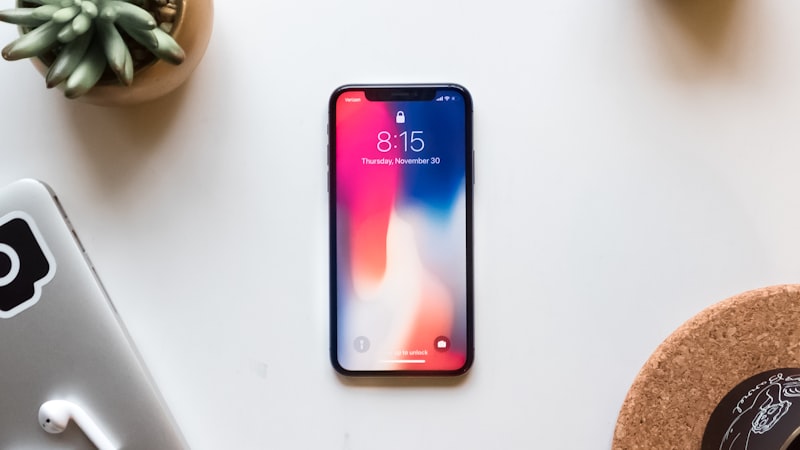
Automatic Brightness, enabled by default on iPhones, uses an ambient light sensor to adjust screen brightness based on the surrounding environment. In bright sunlight, the display will brighten to ensure visibility. In dimly lit rooms, it will dim to reduce eye strain and conserve power.
While convenient, automatic brightness can sometimes be problematic. Users may find that the brightness fluctuates too frequently or that the display is not bright enough in specific situations. Furthermore, the sensor's interpretation of ambient light isn't always perfect. Placement of the iPhone, shadows, or even clothing can inadvertently affect the sensor reading, leading to suboptimal brightness levels.
Manual Brightness Control: Taking Charge
Users can override automatic brightness and manually adjust the display's luminosity. This is achieved through the Control Center (swipe down from the top-right corner) or via Settings > Display & Brightness. A slider provides granular control over the display's brightness level.
While manual control offers greater precision, it requires users to actively manage the brightness, which can be inconvenient in dynamic lighting conditions. A common technique is to set the brightness to a comfortable level for typical indoor use and then manually increase it when outdoors.
True Tone: Beyond Brightness
True Tone is another display technology that impacts perceived brightness. Introduced several years ago, True Tone adjusts the color temperature of the display to match the ambient lighting. This makes the screen appear more natural and reduces eye strain, particularly in environments with warm or cool lighting. While not directly controlling brightness, True Tone's adaptive color temperature can influence how bright the display *seems* to the user.
Night Shift: Reducing Blue Light
Night Shift is designed to reduce the amount of blue light emitted by the display, particularly during evening hours. Blue light has been linked to sleep disruption, and Night Shift aims to mitigate this effect by shifting the display's colors towards the warmer end of the spectrum. While Night Shift doesn't technically dim the display, the warmer color temperature can create a similar effect, making the screen more comfortable to view in low-light conditions. Users can customize the intensity and schedule of Night Shift in Settings > Display & Brightness.
Accessibility Settings and Dimming
The iPhone offers several accessibility settings that can be used to further fine-tune display dimming. The "Reduce White Point" feature, found in Settings > Accessibility > Display & Text Size, reduces the intensity of bright colors, making the display appear dimmer overall. This can be useful for users who are sensitive to bright light or who experience eye strain. Further, users can enable "Auto-Brightness" to reduce eye strain and battery consumption by dynamically adjusting the display’s brightness based on ambient light conditions.
Battery Life Considerations
Display brightness is a major factor in iPhone battery life. Reducing brightness, whether manually or automatically, can significantly extend the time between charges. Consider lowering the brightness when using the iPhone for prolonged periods, especially when battery life is a concern.
Troubleshooting Dimming Issues
If the iPhone display is dimming unexpectedly, there are several troubleshooting steps to consider:
- Check Automatic Brightness: Ensure that Automatic Brightness is enabled and functioning correctly. Try toggling it off and on to reset the sensor.
- Clean the Ambient Light Sensor: The ambient light sensor is located near the earpiece. Make sure it is clean and free of obstructions.
- Restart the iPhone: A simple restart can often resolve software glitches that may be affecting display brightness.
- Update iOS: Ensure that the iPhone is running the latest version of iOS. Software updates often include bug fixes and performance improvements that can address display-related issues.
Understanding the iPhone's display dimming capabilities and how to adjust them is essential for optimizing both visual comfort and battery life. By mastering these settings, users can tailor their viewing experience to their individual needs and preferences.